
How to Edit Lovable Remix Projects: 5 Complete Methods for 2026
Knowing how to edit Lovable remix projects effectively can save you weeks of development time. When you learn how to edit Lovable projects properly, you skip boilerplate code setup and focus on what makes your application unique. This complete guide covers everything about editing remix projects in Lovable that you need to know to build applications faster. At AppArchitectNeo, we help developers master these techniques to build projects faster.
What You Will Learn
What is Lovable.dev
Lovable.dev is a web development platform that uses AI to help you build full applications. You describe what you want using plain language, and the system generates working code. Since the Lovable 2.0 release in early 2026, the platform has become much easier to use for both beginners and experienced developers.
A remix project in Lovable is your own copy of an existing application. You can take a template from the community, a project someone shared with you, or one of your own projects and create a new version that belongs to you. This new version is completely separate from the original. If you want to accelerate your development process, explore AppArchitectNeo remix templates that are pre-optimized for production.
Why Should You Edit Lovable Remix Projects
Speed is the biggest advantage. When you start from an existing project instead of building from scratch, you can finish applications much faster. Most developers find they save 50 to 80 percent of their setup time by using remix.
Learning is another big reason to use remix and edit Lovable projects. When you copy a community project, you see how other developers organized their code, solved problems, and built features. This teaches you real patterns that work in production.
Safety matters too. Since your remix is completely independent, you can try new features and experiment without worrying about breaking anything important. If something goes wrong with your edits to Lovable projects, you can always start over or go back to an earlier version.
Teams find remix useful for getting everyone on the same page. Everyone starts with the same foundation, so there is less confusion about how things are organized and what patterns to follow when they edit Lovable projects together.
Your credits go further when you use remix. Lovable charges credits for creating new projects and making changes. Using remix with small targeted edits to your Lovable projects costs less than building multiple projects from the beginning.
How Remix Projects Work in Lovable
It helps to understand what happens behind the scenes when you create a remix and edit Lovable projects.
What Happens When You Remix
Remixing creates an exact copy of everything in the original project. All your files, code, assets, and settings are copied to your new remix. This new copy is completely separate. When you edit Lovable remix projects, changes to one project do not affect the other.
You automatically own your remix and can do anything you want with it. You can modify it, publish it, share it with others, or keep it private. Your remix gets its own unique URL so it is clearly different from the original.
When you remix, you have the option to include the original project’s history. This shows you how the project was built, what changes were made, and why certain decisions were made. Many developers appreciate this when they are learning to edit Lovable community projects.
Your version history and credit usage are separate from the original. You only see changes you made to your remix, not changes the original creator made to their version.
Privacy and Sharing in Lovable Remix Projects
Lovable 2.0 makes all new projects private by default. This means only you can see your remix unless you invite someone. Your projects do not show up in public listings unless you choose to share them. This gives you freedom to experiment without worrying about who might see your work when you edit Lovable projects.
How to Remix a Project Step by Step
The remix process is simple. You have two ways to do it depending on where you are in the interface when you want to edit Lovable projects.
Method 1: Remix from the Dashboard
Start by logging into Lovable.dev and going to your dashboard. You will see all your projects listed there.
Find the project you want to remix. This could be your own project, a public project from the community, or a project someone shared with you. Look for the three-dot menu next to the project name and click it. This shows you the available options for that project.
Click Remix from the menu. A dialog box will ask whether you want to include the project history. If you want to see how the project was created, check this box. If you prefer to start fresh without all the history, leave it unchecked when you remix Lovable projects.
Click Confirm Remix and wait for it to process. This usually takes 10 to 30 seconds. You will get a confirmation message when it is done, and your new remix will open in the editor ready for you to edit Lovable projects.
Method 2: Remix from Inside the Editor
If you are already working in a project and want to remix it, you can do this without leaving. Click on your project name in the top left corner to open the project menu and select the option to edit Lovable projects as a new remix.
Look for the Remix Project option and click it. The same history dialog appears. Make your choice and confirm. This is the fastest way to edit Lovable projects when you already have one open.
What to Do Right After Remixing
Give your remix a good descriptive name right away. Use a name that tells you what the project is for. For example, TodoApp-DarkMode-V2 or Dashboard-MobileOptimization clearly describe what you are working on when you edit Lovable remix projects.
Add a description that explains why you created this remix. Something like Testing real-time notifications using Supabase or Redesigning for mobile first helps you remember your goals later when you edit Lovable projects.
Consider making a backup remix before making big changes. This gives you a safety net if your experiments do not work out when you try to edit Lovable projects.
5 Ways to Edit Lovable Remix Projects
Lovable gives you five different approaches to editing your remix projects. Each one works better for different situations. Understanding when to use each will make you more productive when you edit Lovable remix projects.
Method 1: Chat Mode for AI Help Editing Lovable
Chat Mode is the main way to edit in Lovable. It is the default option since August 2025. Think of it as describing what you want to a code-writing assistant that understands your project when you edit Lovable remix projects.
You type requests in normal English like Add a dark mode toggle or Create user authentication with Supabase. The AI looks at your project, suggests a plan for what files need to change, and asks for your approval before making changes when you edit Lovable projects.
This approach is great for big changes that affect multiple files. When you need to add features, connect to external services, or reorganize code, Chat Mode handles it all automatically when you edit Lovable remix projects. It understands your file structure and existing code patterns.
According to Lovable’s reports from 2025, using AI to make changes reduces errors by 91 percent compared to manual editing. Every change is saved in your version history, so you can go back to earlier versions if something does not work right when you edit Lovable projects.
Chat Mode works well for complex features, fixing bugs, adding integrations, changing code structure, and situations where you are not sure how to implement something when you edit Lovable remix projects. Each message costs between 0.50 and 2.00 credits depending on how complex your request is.
Method 2: Dev Mode for Direct Code Editing
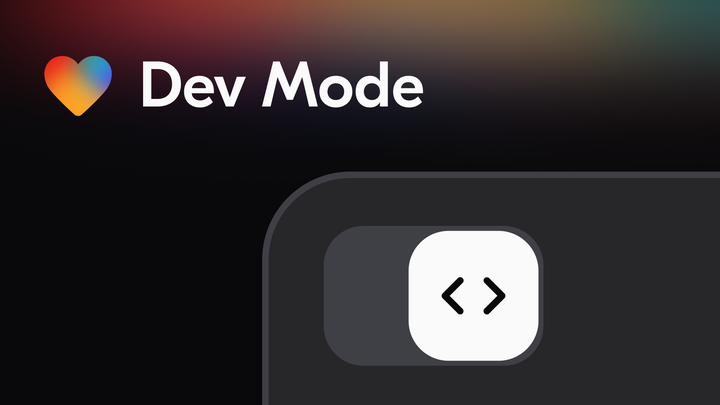
Dev Mode lets you edit your code directly with syntax highlighting and code suggestions. It is available on all paid plans. Use this if you want hands-on control over your code when you edit Lovable remix projects directly.
When you turn on Dev Mode to edit Lovable projects, you see your file list on the left, the code editor in the middle, and a live preview on the right. Click any file to edit it.
The editor highlights your code syntax for JavaScript, JSX, CSS, HTML, and TypeScript. It suggests variable names, imports, and methods as you type based on your project when you edit Lovable code.
Editing in Dev Mode is free. These changes do not use any of your monthly credits. Use Dev Mode for quick text changes, adjusting styles, changing constants, or modifying code you already understand when you edit Lovable projects.
Dev Mode is not ideal for big changes across many files. If you need to change more than 3 files for one feature, use Chat Mode instead when you edit Lovable remix projects. It will be faster and more reliable.
Method 3: Visual Edits for No Code Required
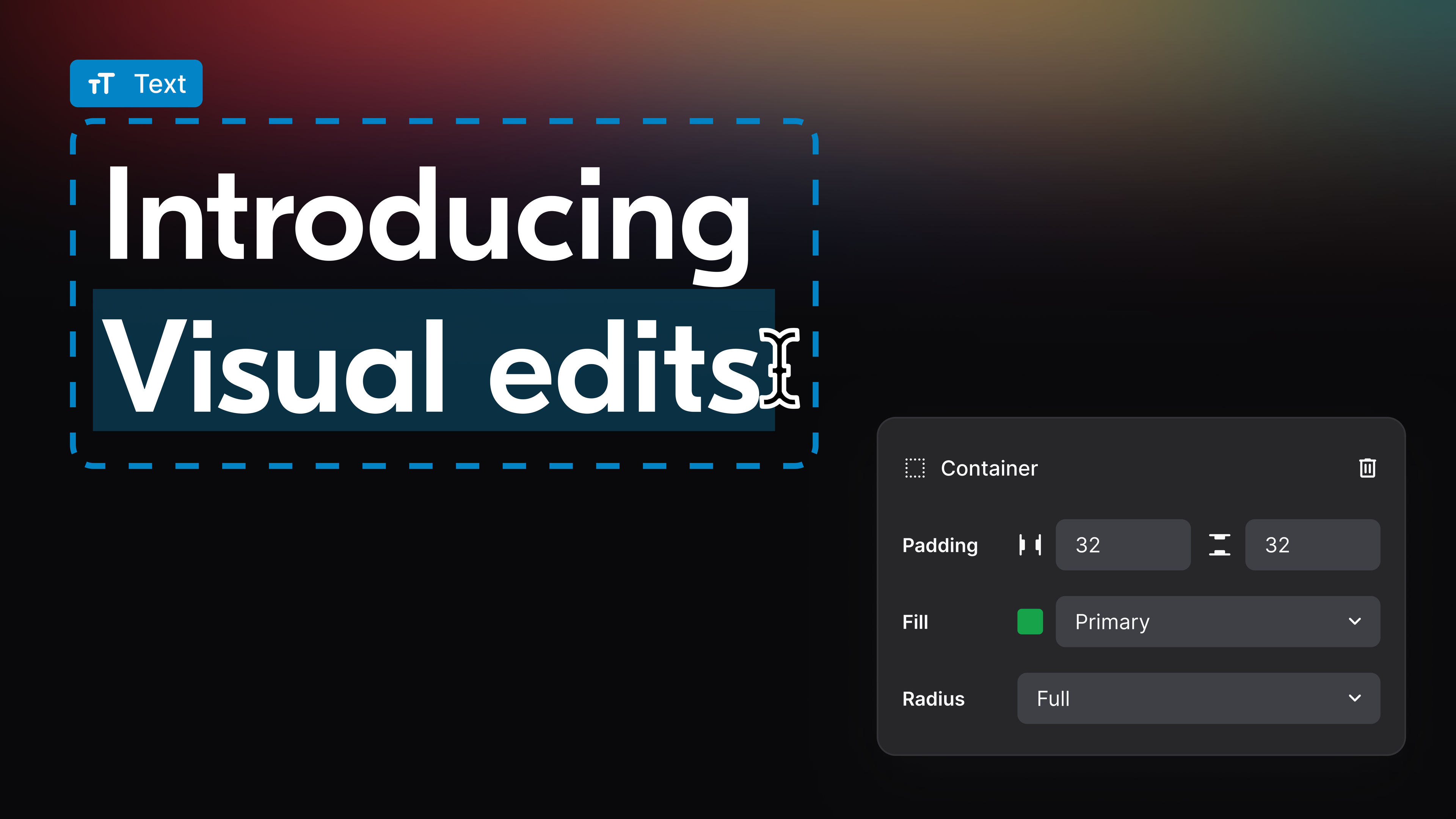
Visual Edits let non-technical people and designers modify applications without writing any code. This feature came out in Lovable 2.0 and works through a point and click interface to edit Lovable projects.
Hover over any element in your live preview and a control box appears. You can edit text directly, change colors, adjust spacing, move elements, and show or hide things when you edit Lovable remix projects visually.
This method works well for cosmetic changes and fine-tuning the look. Designers can iterate quickly without touching code. Teams can work together on appearance changes remotely when they edit Lovable projects.
Visual Edits are not for changing how the app works, adding new pages, connecting APIs, or building complex interactions. For those things, use Chat Mode when you edit Lovable remix projects.
Method 4: GitHub Integration for Team Editing
Connect your Lovable project to GitHub to edit Lovable remix projects with your team. Changes sync automatically between your code editor and Lovable. You can use your favorite IDE like VS Code or Cursor while your changes appear in Lovable.
This is powerful for teams that want to edit Lovable projects using their existing development workflow. Push code to GitHub and it automatically updates in Lovable. This method combines the flexibility of local editing with Lovable’s AI assistance.
Method 5: Version Restore for Quick Rollbacks
When you edit Lovable remix projects and something breaks, use version history to instantly restore to a working version. Lovable 2.0 includes screenshot previews, bookmarking, and one-click restore. This is your safety net when you edit Lovable projects experimentally.
After completing a major feature, bookmark that version. Before trying something risky, note which version you are starting from. If something breaks when you edit Lovable projects, you can restore instantly without fixing code manually.
Using Dev Mode to Edit Code in Lovable
If you know how to code, Dev Mode gives you speed and control for focused editing when you edit Lovable remix projects.
Getting Started with Dev Mode
Open your project and look for the code brackets symbol (< >) in the top right. Click it to turn on Dev Mode and start to edit Lovable projects. Your screen reorganizes to show files on the left, editor in the middle, and preview on the right.
Common Things You Do in Dev Mode
Changing text and labels is straightforward when you edit Lovable projects. Find the file with the text you want to change. Use Ctrl+F to search for it, then replace it. The preview updates automatically when you edit Lovable code.
Lovable projects use Tailwind CSS for styling. Find the className attribute on an element and change the Tailwind classes. You can change bg-blue-500 to bg-purple-600 or add hover:opacity-75 for effects when you edit Lovable projects. Changes show instantly when you edit Lovable remix projects.
Use Dev Mode to explore how your project is built. See how files are organized, how data moves between components, and how the original creator solved problems. This is really helpful when you edit Lovable projects and are learning from other people’s code.
Add utility functions by creating new files like utils.ts in the /app folder. Write functions, export them, and import them where you need them. This is how you add functionality without using Chat Mode when you edit Lovable remix projects.
Mastering Chat Mode for AI Help to Edit Lovable
Chat Mode is where Lovable shows its real power. Learning to communicate what you want makes your development much faster when you edit Lovable remix projects.
How to Get Good Results When You Edit Lovable Projects
Be specific about what you want. Instead of saying Make it mobile friendly, say Ensure the layout works well on screens of 320 pixels, 768 pixels, and 1024 pixels. Stack the side column vertically on screens smaller than 768 pixels when you edit Lovable projects.
Tell Chat Mode about your constraints and requirements. Mention the libraries you want to use, patterns you like to follow, performance goals, and accessibility needs. The more context you give, the better your results when you edit Lovable remix projects with AI help.
Point out existing patterns in your project. Say things like Make this new form validation work the same way as the existing login form. This helps the AI keep your code consistent when you edit Lovable projects.
When something is not working, describe it clearly. Do not say When I click this button nothing happens. Instead say When I click the submit button the form does not send data to the database and shows no error. It should show a success message when you edit Lovable projects and test them.
How the Process Works
After you describe what you want, Chat Mode explains what it will do. It tells you which files will change and why, mentions any new things it might add, and asks questions if something is unclear when you edit Lovable remix projects.
Review the plan carefully. Check the list of files that will change. Make sure the approach matches what you had in mind. Ask questions before it starts: Will this work with database security settings or What happens if the connection times out when you edit Lovable projects?
Once you approve by typing yes or implement, the changes happen across all your files at once. Your preview updates in real time, and the changes appear in your version history when you edit Lovable remix projects.
Building Features Step by Step
Break big features into smaller pieces. Do not ask Build me a complete shopping site in one request when you edit Lovable projects. Instead ask for each part separately: create the product list page, add the shopping cart, build the checkout form, set up payments, add user accounts, then create the admin panel. This approach gives better code when you edit Lovable remix projects step by step.
Each request remembers what you did before, so you can keep building on it. You can say Now add dark mode to the dashboard we just created and it knows what you are talking about when you edit Lovable projects incrementally.
Visual Edits Without Code for Lovable
Visual Edits remove the code barrier and let anyone customize appearance and text. You do not need to understand code to edit Lovable remix projects.
How Visual Editing Works
Your app preview shows by default. Hover over any element and a control box appears. Click the element. Editing options show up based on what you selected when you edit Lovable projects.
For text, you can edit the words, change the color, adjust the size, align left center or right, or change the weight when you edit Lovable projects. For buttons, you can change the label text, background color, text color, size, padding, and how round the corners are. Forms let you edit placeholder text, colors, borders, and spacing when you edit Lovable projects visually.
Images can be replaced, resized, have alt text updated, and have borders or shadows when you edit Lovable remix projects. Navigation can be edited and reorganized. You can preview and adjust for mobile screens too when you edit Lovable projects for different devices.
Everything saves automatically. Changes show up right away in both the preview and your version history, so experimenting is safe when you edit Lovable projects.
Best Practices for Editing Remix Projects
How you organize and work with your projects makes a big difference in how productive you are when you edit Lovable remix projects.
Naming and Organization
Use consistent names for your remixes. Include what feature you are working on and the version number. Examples: TodoApp-DarkMode-V1, Dashboard-RealTimeUpdates-V2, LandingPage-AB-Test. This clarity saves time when you have many projects to edit Lovable.
Write descriptions for your projects that explain your intent. Something like Testing Supabase subscriptions for live updates or Mobile first redesign focusing on touch interaction helps you remember your goals when you come back to the project and need to edit Lovable again.
Using Version History
Lovable 2.0 includes version history with screenshots, bookmarking, and quick restore. Use these features wisely when you edit Lovable remix projects.
After you finish a major feature in Chat Mode, bookmark that version. Before you try something experimental, note which version you are starting from. If something breaks when you edit Lovable projects, you can restore instantly without fixing code manually.
This essentially gives you unlimited backup versions for trying new things when you edit Lovable remix projects.
Choosing the Right Tool
Use Chat Mode for big changes and features that affect many files. Use Dev Mode for small adjustments to code you understand. Use Visual Edits for styling and appearance. This keeps you efficient when you edit Lovable projects.
If you are not sure whether to use Chat Mode or Dev Mode when you edit Lovable projects, think about complexity. If you need to change 3 or more files, use Chat Mode. If it is just one file or a quick change, use Dev Mode when you edit Lovable remix projects.
Common Problems and How to Solve Them
Most issues developers face fall into a few common categories when they edit Lovable remix projects.
Chat Mode Made Code That Does Not Work
If what Chat Mode created does not work right when you edit Lovable projects, describe the problem clearly: The feature I asked for is not working. When I click submit nothing happens. Ask it to debug: Can you check why the form is not submitting when I edit Lovable projects?
Or go back to the previous version and ask again in a different way. Sometimes breaking your request into smaller pieces gives better results when you edit Lovable remix projects.
Changes Are Not Saving
Check your internet connection first. In Chat Mode, wait for the success message before closing. In Dev Mode, use Ctrl+S to save. If problems continue, try refreshing the page or clearing your browser cache when you edit Lovable projects.
Using Credits Faster Than Expected
Remember that Chat Mode messages use credits. Bigger requests use more credits. Plan what you want before you ask when you edit Lovable remix projects. Use Dev Mode for simple changes instead of Chat Mode. Ask for related things together instead of multiple times. Thinking through your request before sending saves credits and gets better results when you edit Lovable projects.
Supabase Not Working
Make sure Supabase is connected in your project settings when you edit Lovable projects. Check that your database tables match what your code expects. Review your database security settings to make sure they allow what you are trying to do. Ask Chat Mode: The data is not loading from Supabase. Can you check the connection and permissions when I edit Lovable projects?
Lovable Pricing in 2025
Understanding which plan includes which features helps you pick the right one when you edit Lovable remix projects.
Free Plan
The free plan gives you 5 credits every day. You can use Chat Mode but with limits. Dev Mode is read only so you can see code but not change it when you edit Lovable projects. Visual Edits work with restrictions. Remixing is free and unlimited when you want to edit Lovable.
The free plan is good if you are new to Lovable, working on personal projects, or learning how the platform works when you edit Lovable remix projects. Explore our AppArchitectNeo free starter templates to accelerate your learning.
Paid Plans Scale 1 Through 7
Paid plans range from Scale 1 with 150 monthly credits to Scale 7 with 5150 monthly credits. All paid plans include full Chat Mode, Dev Mode you can edit in, full Visual Edits, unlimited remixes, workspace sharing, custom domains, and priority support when you edit Lovable projects.
Scale 1 with 150 credits fits freelancers and solo developers making 2 to 4 projects per month to edit Lovable. Scale 2 with 600 credits works for regular developers and small agencies that edit Lovable projects frequently. Scale 3 with 1500 credits is for professional developers and agencies building many projects and editing Lovable extensively. Scale 4 through 7 with 2000 to 5150 credits work for large teams and production applications that heavily edit Lovable projects.
Most developers find that planning before they ask and grouping related requests together lets them accomplish a lot with their monthly credits when they edit Lovable remix projects.
Questions and Answers About Editing Lovable
Does Remixing Cost Credits When I Edit Lovable Projects
No, remixing is completely free. Chat Mode changes cost 0.50 to 2.00 credits each when you edit Lovable projects. Dev Mode and Visual Edits are free. So you can remix as much as you want and use the free editing methods a lot before you need to spend credits when you edit Lovable projects.
Can You Edit Lovable Projects You Do Not Own
Yes. You can edit Lovable remix projects from your own projects, public projects from the community, projects people shared with you, and featured projects. Your remix becomes your own independent copy that you fully control when you edit Lovable.
What Happens to the Original When You Edit Lovable Remix Projects
Nothing. The original is not affected at all when you edit Lovable remix projects. Your remix is separate with its own version history, credit tracking, and changes. You can edit both at the same time without affecting each other when you edit Lovable projects.
How Many Remixes Can You Create and Edit Lovable
On free plans you are limited by your daily credits, but remixing itself is free. On paid plans you can make unlimited remixes to edit Lovable. The best approach is creating a remix for each major feature or test, then deleting old ones to keep your list clean when you edit Lovable projects.
Can You Copy Code Out and Edit It Elsewhere to Use Lovable
Yes. Dev Mode lets you select all code, copy it, and paste it into VS Code, Cursor, or any editor. If you want changes to go back into Lovable, connect your project to GitHub and it will sync automatically between your local code and Lovable when you edit Lovable projects.
How Do You Go Back to an Earlier Version
Open your project and click Edit History in the menu when you edit Lovable projects. You see screenshots of each version. Click the version you want and select Restore. It goes back instantly and costs nothing when you edit Lovable remix projects.
What Is the Difference Between Chat Mode and Dev Mode
Chat Mode uses AI to make changes across many files based on what you ask for in plain language when you edit Lovable projects. Dev Mode is direct code editing with syntax highlighting. Chat Mode is for big changes and complexity. Dev Mode is for direct control of specific edits when you edit Lovable remix projects.
How Many Credits Does a Typical Project Need
Simple landing pages take 2 to 3 credits. Todo apps usually need 5 to 8. Dashboards average 8 to 12. E-commerce sites run 15 to 25. Full SaaS apps can go over 50. It depends on how complex your features are, how many outside services you connect to, your database needs, and design changes when you edit Lovable remix projects.
How to Reduce Credit Usage When You Edit Lovable
Plan what you want before you ask so you do not have to ask twice when you edit Lovable projects. Use Dev Mode for simple changes instead of Chat Mode. Ask for related things together instead of one at a time. Test as you go to catch problems early when you edit Lovable remix projects. Learn how Chat Mode writes code and copy those patterns yourself in Dev Mode so you do not ask for similar things again when you edit Lovable projects.
Can You Make Money From Lovable Projects You Edit
Yes. You completely own your edited remix projects. You can make them commercial, build for clients, sell products, and use them for business when you edit Lovable projects. If you use a community project for money, give the original creator credit and follow Lovable’s terms of service when you edit Lovable projects.
Summary
Lovable remix projects with Chat Mode, Dev Mode, and Visual Edits give you a powerful way to build applications. The key is using the right tool for what you are trying to do when you edit Lovable remix projects. At AppArchitectNeo, we provide pre-built remix templates and training to help you master these techniques.
Start with simple community projects to learn how things work. Get comfortable with the tools. Then tackle bigger features and use Chat Mode for changes that touch multiple files when you edit Lovable projects. Use Dev Mode for careful edits. Use Visual Edits for styling. Most importantly, use version history liberally and do not be afraid to try new things when you edit Lovable remix projects. That is what remixes are for.
With practice and smart planning of your credits, you will build applications in days instead of weeks. The platform keeps getting better, and your skills with it will improve over time when you edit Lovable projects consistently. Join our community at AppArchitectNeo to learn from other developers who are mastering how to edit Lovable remix projects.
Last updated December 2025. Information current for Lovable Version 2.0 and later. Use this guide to edit Lovable remix projects effectively. For production-ready templates and advanced strategies, visit AppArchitectNeo.